
Your Home Battery App, Explained: What the Screens and Work Modes Actually Do
Your Home Battery App, Explained: What the Screens and Work Modes Actually Do
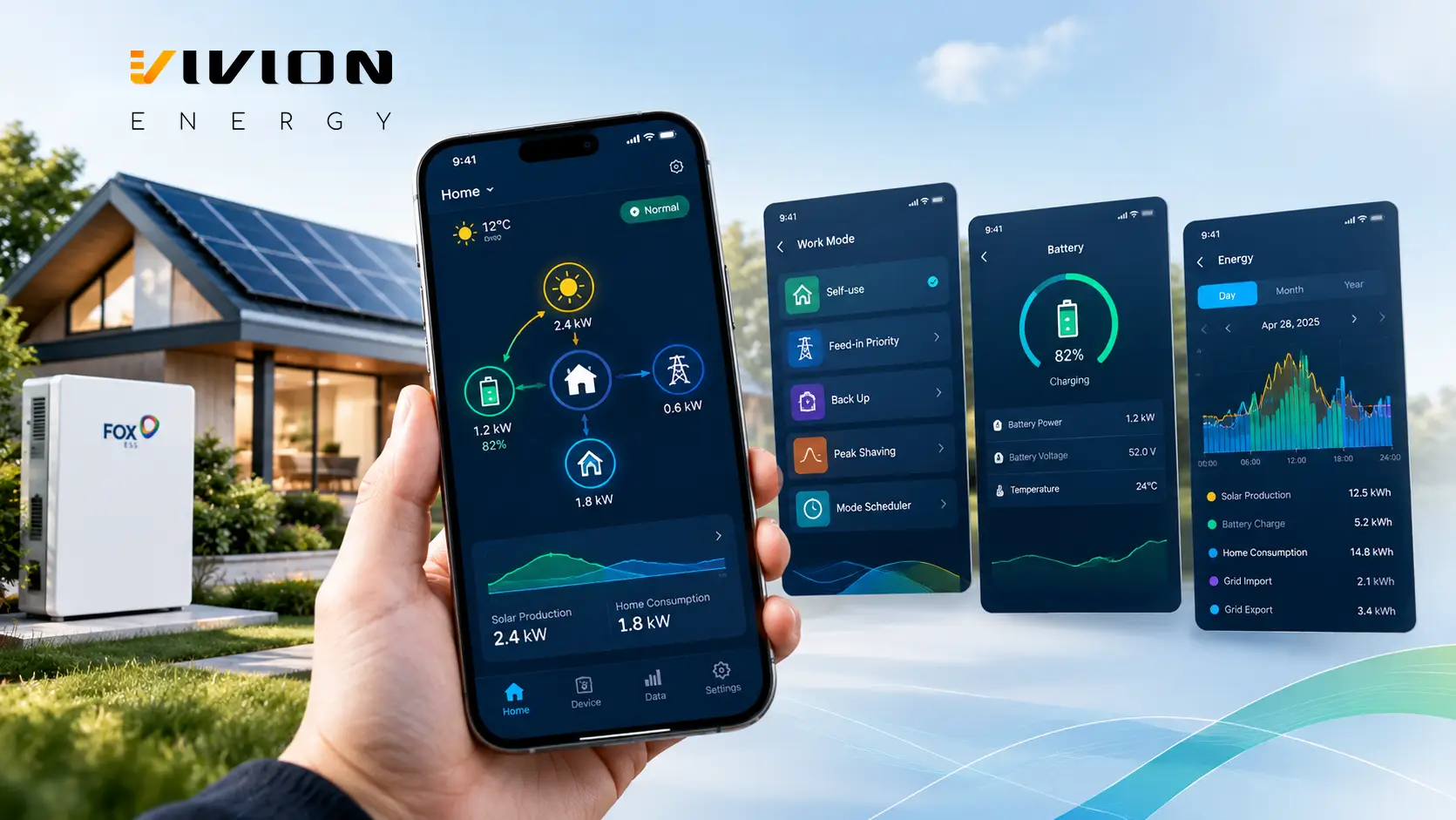
A home battery does most of its work quietly, so the app is how you see what it is doing. If you are thinking about a battery, or already have one, here is a plain-English tour of what a typical battery app shows and the settings you may hear about.
This post uses Fox ESS’s FoxCloud 2.0 app as the example, because Fox ESS is the brand Vivion installs. Vivion is an authorized Fox ESS dealer.
What the main screen shows
According to the FoxCloud 2.0 App User Manual (Version 2.1, February 3, 2026), the home screen for owners shows system status and a power flow diagram, with arrows showing which way energy is moving. It also shows production and consumption. Think of it as a live map of your house: solar, battery, home and the grid.
Fox ESS says in its FoxCloud 2.0 guide that the app refreshes solar, household load and battery data every five seconds. Its suggested homeowner uses include checking whether the battery is charging, discharging, full or idle, and spotting grid imports that could have been covered at home.
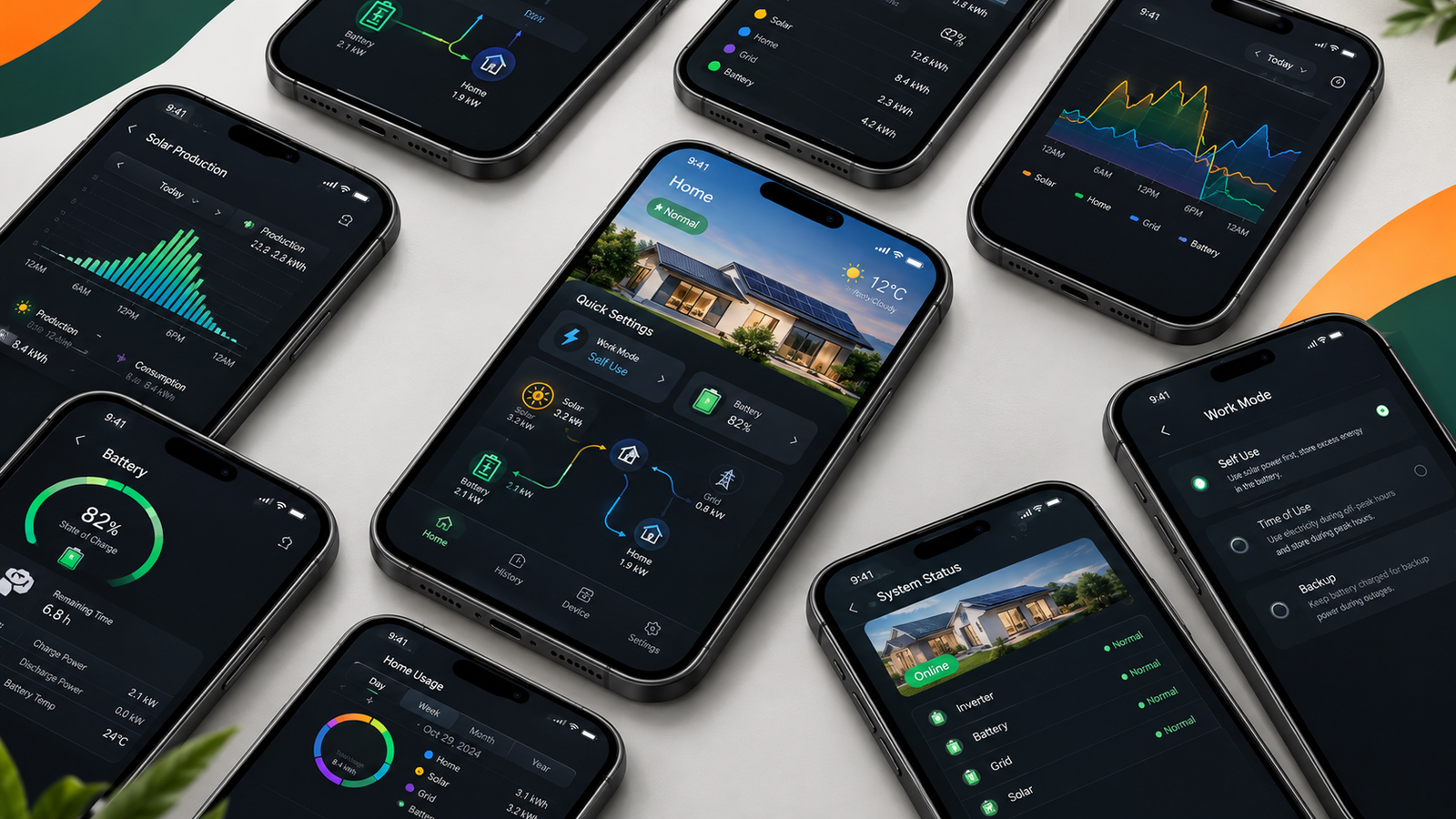
The device list can also include inverters, batteries, EV chargers and heat pumps, according to the manual. What you see depends on your system.
Work modes in everyday words
A work mode is the battery’s rulebook for when to charge and when to give power back to the home. The manual lists these:
- Self-use: solar covers the home first, then the battery, then the grid.
- Feed-in Priority: solar covers the home first and extra goes to the grid. The battery only charges once export limits are reached.
- Back Up: charges the battery to a chosen backup level and stops it from discharging.
- Peak Shaving: uses the battery only when home demand goes above an import limit.
- Mode Scheduler: runs different modes in set time windows, including forced charge and forced discharge.
Which of these you can use depends on your role, region and device, so ask your installer what is available on your system. Fox ESS also describes an “AI Mode,” but its manual says that is currently available only in the Netherlands, so do not count on it here.
Settings worth knowing about
The manual lists quick settings such as System Min. SOC and System Max. SOC (the lowest and highest battery charge level the system will use; “SOC” means state of charge), a Backup Cut-off SOC, import and export limits, and Smart Load Control. It also lists Battery Warmup for low temperatures, plus StormSafe Charging and Power Outage Reserve, which can pre-charge the battery when a weather or outage alert arrives.
Two cautions from the manual are worth repeating. Settings made on site override app settings, and when Mode Scheduler is on, battery settings cannot be changed in Quick Settings until you switch back to a basic mode. Changing charge limits can change how your battery behaves, so it is a good idea to talk with your installer before adjusting them. The app is for monitoring and settings. It is not a way to confirm a circuit is safe, and electrical work should only be done by a licensed professional.
Why it matters for Ontario price plans
The Ontario Energy Board’s price plans work in two ways. With Time-of-Use (TOU) or Ultra-Low Overnight (ULO), the price depends on when you use electricity. With Tiered, the price depends on how much you use in a month. The OEB says shifting use to lower-price periods can reduce costs when it is practical, but there is no guarantee of savings from switching plans.
That is where a schedule can matter. Fox ESS says the app can hold a manual tariff with up to 96 time slots (FoxCloud 2.0 product page), and its guide describes a fixed off-peak charging window as one example of a battery schedule. Whether a schedule makes sense depends on your home, your plan and program rules, so the best first step is to look at your own bills and usage. For background on how a battery fits in, see our earlier post, How a Home Battery Works in an Ontario Home.
What about the energy management hub?
Some systems add a separate hub. The FOX HUB G2 datasheet (V1.9, September 1, 2025) from Fox ESS lists support for the FOX US Series inverters, up to 4 inverters, a smart load shedding circuit, CAN and RS485 communication, and a Type 3R rating. Whether a hub is part of your setup is confirmed during your consultation.
Where Vivion fits in
Vivion installs Fox ESS US-Series (Flex) and AIO PowerQ home batteries. Sizing is always confirmed for your home during a consultation. If you have questions about what the app shows or which modes might suit your household, our team can walk you through it.

Questions to ask before you buy
- Which app features and work modes are available on my system in Ontario?
- Can I change settings myself, or should changes go through the installer?
- How do alerts work, and who do I contact if something looks off?
- Does my price plan change how a schedule would be set up?
If you would like to talk it through, we invite you to book a free consultation with Vivion Energy.
Sources
- Fox ESS, FoxCloud 2.0 App User Manual, Version 2.1, February 3, 2026
- Fox ESS, From Energy Data to Smarter Decisions: A Guide to FoxCloud 2.0
- Fox ESS, FoxCloud 2.0 product page
- Fox ESS, FOX HUB G2 Datasheet V1.9, 2025/09/01 (hosted on vivionenergy.com)
- Ontario Energy Board, Choosing your electricity price plan
- Vivion Energy, FoxCloud 2.0
- Vivion Energy, Fox HUB G2
Information is current as of October 29, 2026. Programs and rates can change, so check the official source or contact us before making decisions.